
It’s called a Gmail template, and you have to do a couple steps in order to use it.
First, enable email templates
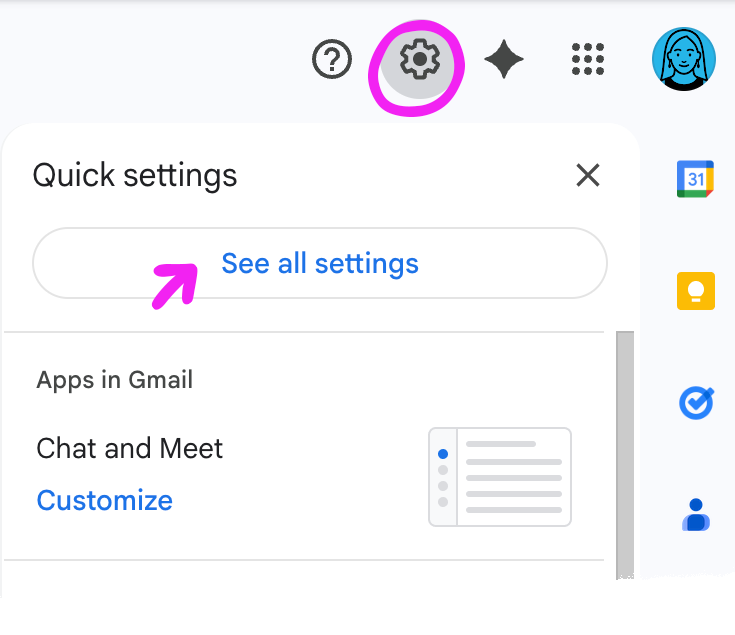
Find the little gear at the top of your screen and click it. This is “Settings”. Click “See all settings” from the pop-up menu that appears.
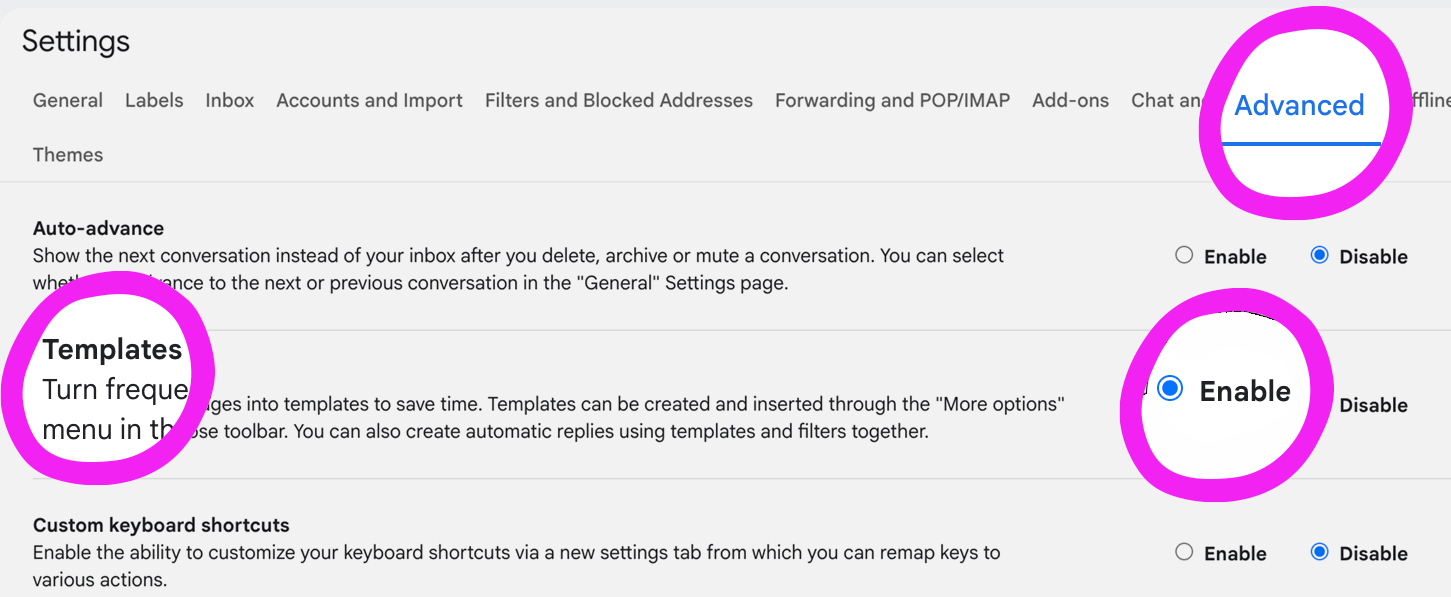
Click “Advanced” at the top of the screen that appears, and then click “Enable” next to “Templates.” Don’t forget to click “Save changes” at the bottom of the screen.
Next, create your template
Begin by writing an email as you normally would.
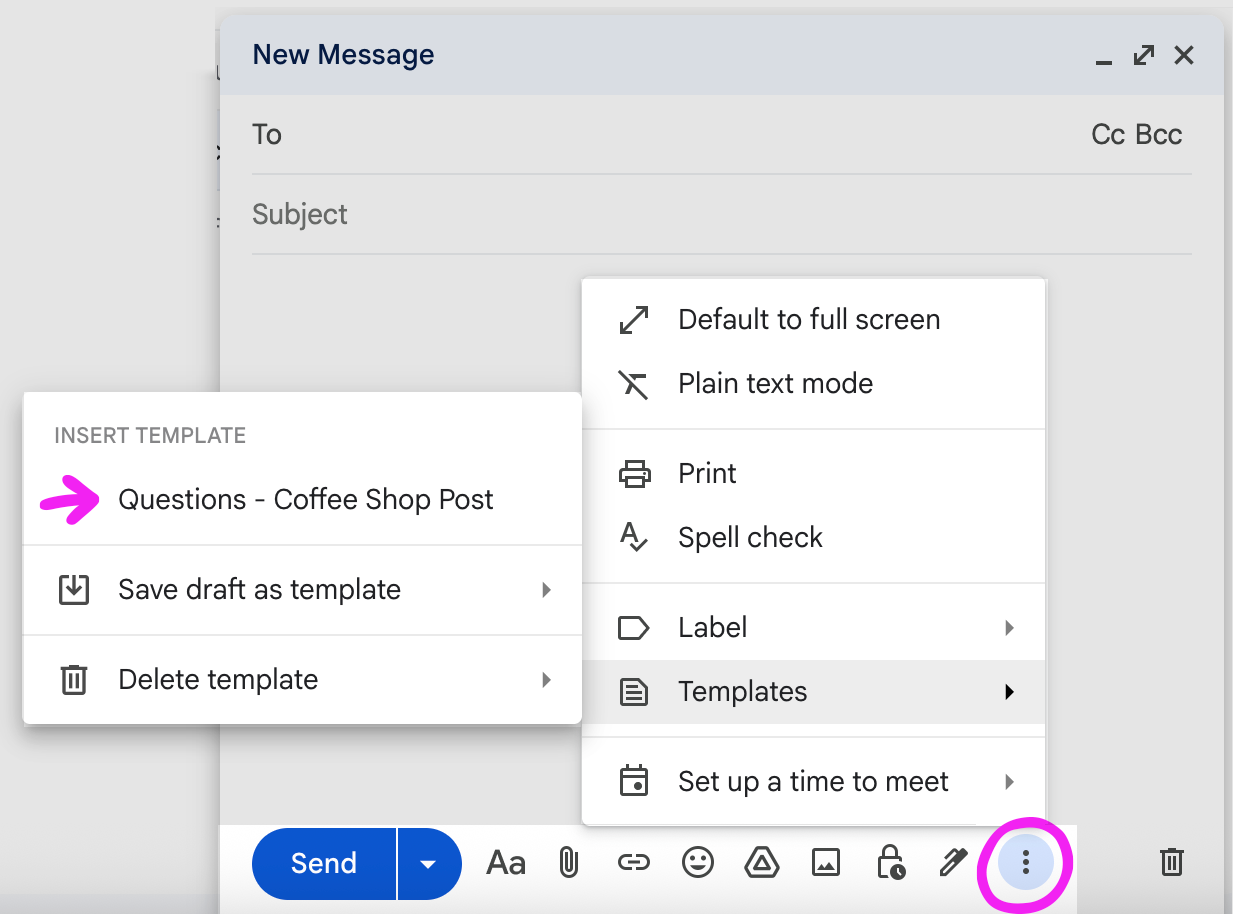
When you’ve written it, instead of clicking “Send,” go to the little tiny three-dot menu at the bottom right-hand corner of your message.
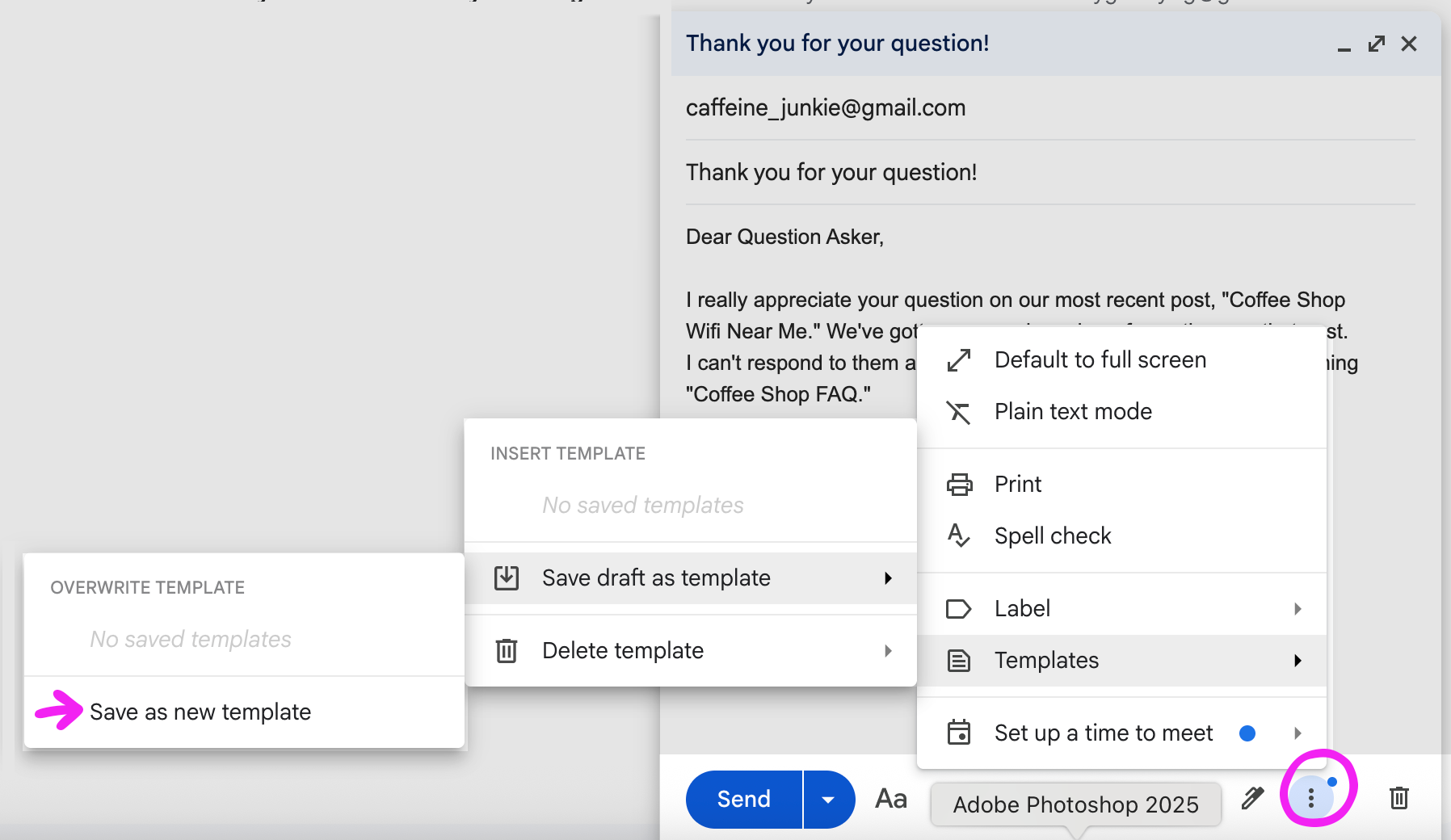
Click on it, then click “Templates,” “Save draft as template,” and “Create new template.”
When prompted, name your template. Gmail will prompt you for a name using your subject line, but you can change this if you want to.
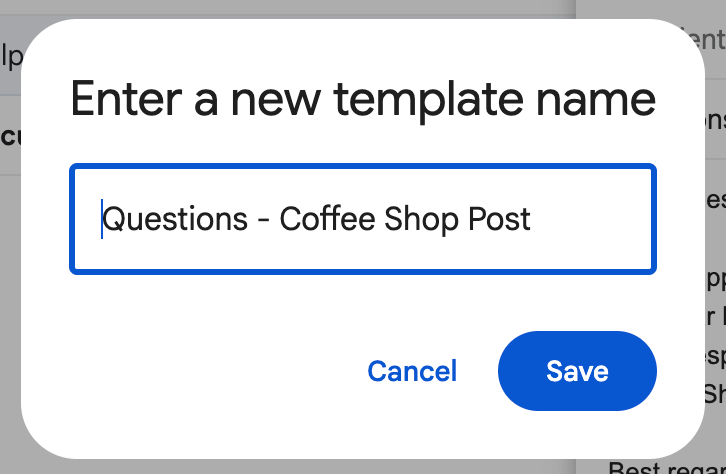
After saving your template, you don’t get much feedback that you’ve successfully created it. But now, you’ll have it available to use next time you write an email.
Use your template
To use a template, begin by creating a new email just as you normally would.
Then, click the same teeny three dots menu you clicked when you created the template. Select “Templates,” and your newly-created template appears at the top of the menu to the left. Now you can edit it by adding a recipient’s name and making any other changes you want to personalize the email.
Pro Tip The template populates its subject line with the name you gave your template. I like to save my templates with a name that tells me what they’re for, but the tradeoff is that I have to remember to type in a more reader-friendly subject line each time I use the template.